
Bit depth impacts your workflow more than you might realize, as higher bit depths mean larger files, requiring stronger hardware and more storage space. This can slow down editing and increase render times, making your process more demanding. It also affects your ability to make precise adjustments and achieve better final quality. Balancing these factors is essential for efficiency, and if you keep exploring, you’ll discover how to optimize your workflow for any project.

Get audio and creator gear delivered free — and shop member deals
- Fast, free delivery on millions of items
- Access to Prime Big Deal Days deals on October 6–7
- Prime Video, Amazon Music and more included
Key Takeaways
- Higher bit depth increases file size, demanding more storage and faster transfer speeds, impacting overall workflow efficiency.
- Processing high-bit-depth files requires more powerful hardware, potentially slowing down editing and rendering times.
- Larger files complicate project organization and version control, necessitating meticulous file management.
- Greater bit depth allows for more precise adjustments, reducing artifacts and minimizing rework during color grading.
- Balancing bit depth with storage and hardware limits is essential to optimize workflow without sacrificing quality.
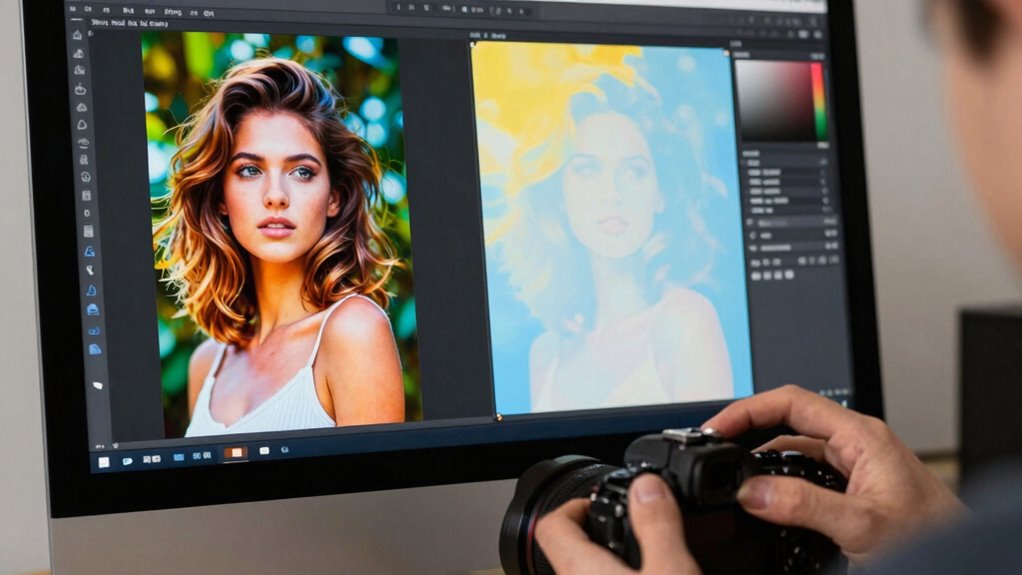
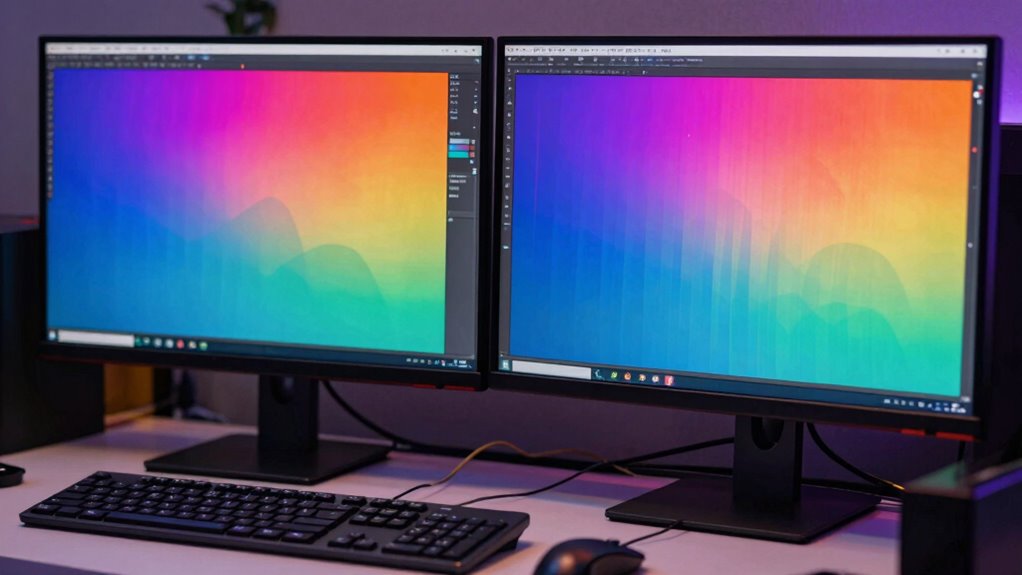
Understanding how bit depth influences your workflow is essential for achieving high-quality audio and image production. When working with digital media, bit depth determines the amount of information stored for each pixel or audio sample, directly impacting your ability to perform precise adjustments like color grading or editing without degrading quality. The higher the bit depth, the more detailed your files become, which means you can manipulate colors and tones more effectively during post-production. This becomes especially critical in color grading, where subtle shifts in hue, saturation, and luminance require a rich, detailed color space. If your files have low bit depth, you might encounter banding or posterization, limiting your creative flexibility and forcing you to compromise on visual fidelity.
File storage is another key aspect affected by bit depth. Higher bit depths produce larger files because they contain more information, requiring more storage space and faster data transfer speeds. This means your workflow needs to account for increased storage capacity and potentially more powerful hardware to handle large files efficiently. When you’re editing high-bit-depth images or audio, every adjustment and render can become more demanding on your system, so understanding the trade-offs helps you plan your storage solutions and hardware investments wisely. If you’re working with compressed or lower bit depth files to save space, you might find yourself limited in post-production, forcing you to make compromises that affect the final quality. Additionally, file management becomes more complex with higher bit depth media, requiring careful organization to avoid workflow bottlenecks. Recognizing the importance of workflow optimization can help streamline your editing process and avoid unnecessary delays.
Understanding the impact on editing is also crucial, as higher bit depth allows for more precise adjustments without introducing unwanted artifacts. This is particularly noticeable during color grading, where subtle shifts can make a significant difference in the overall look of your project. If you work with 8-bit files, you’ll likely encounter banding and posterization, which can ruin the seamless gradients you aim for. Switching to 10-bit or higher gives you a broader tonal range and smoother color transitions, ensuring your grading process is more forgiving and your results more polished. Additionally, bit depth influences how well your files retain quality after multiple edits, reducing the risk of cumulative artifacts. However, this also means you must be mindful of your file management and storage workflows, as handling higher bit depth media requires careful planning for both data management and project organization.
Ultimately, understanding how bit depth influences your workflow helps you make smarter decisions about your project setup, storage solutions, and post-production techniques. It’s not just about quality—it’s about efficiency and flexibility. Whether you’re working on high-end professional projects or personal creative endeavors, knowing the implications of bit depth on color grading and file storage enables you to optimize your workflow for the best possible results, avoiding bottlenecks and quality issues down the line.
high capacity external hard drive for video editing
As an affiliate, we earn on qualifying purchases.
As an affiliate, we earn on qualifying purchases.
Frequently Asked Questions
Does Higher Bit Depth Increase File Size Significantly?
Yes, higher bit depth increases file size considerably. This is because more bits store additional color information, leading to better color accuracy. However, larger files can result in increased compression artifacts during compression, potentially reducing quality. If you prioritize color fidelity and detail, higher bit depth is beneficial, but be prepared for increased storage needs and processing demands. Balancing file size and quality is key for ideal workflow.
Can Lower Bit Depth Cause Color Banding Issues?
Lower bit depth can cause severe color banding issues, turning smooth color gradients into harsh, posterized jumps. You’ll notice compression artifacts more easily, ruining the seamless look you’re after. It’s like painting with fewer colors—your gradients lose their subtlety and depth, making your work look flat and unprofessional. So, don’t cut corners on bit depth; it’s the key to preserving vibrant, smooth color progression.
Is 16-Bit Suitable for All Types of Editing?
Yes, 16-bit is suitable for most editing workflows because it offers excellent color accuracy and ample tonal range. It helps prevent banding issues and allows for more precise adjustments. However, keep in mind that higher bit depths create larger files, which can impact storage and file compression. For complex edits or professional work, 16-bit strikes a good balance, but for simpler projects, 8-bit might suffice, saving space.
How Does Bit Depth Impact Render Times?
Think of render times as a rocket launch—bit depth can make them skyrocket or stay steady. Higher bit depths, like 16-bit or 32-bit, boost color accuracy and editing flexibility, but they also demand more processing power. This increased data causes longer render times, so you might spend more time waiting for your project to finish. Balancing bit depth guarantees you get sharp, vibrant results without unnecessary delays.
What Is the Optimal Bit Depth for Web Use?
For web use, a 8-bit color depth is ideal. It balances color accuracy and file size, reducing the risk of compression artifacts that can distort images. Higher bit depths, like 10 or 12-bit, offer better color precision but increase file size, which isn’t suitable for quick loading times. Stick with 8-bit for smooth performance and decent color fidelity, ensuring your images look good without unnecessary delays.
Conclusion
Understanding bit depth is like tuning an instrument—you might not notice the subtle differences at first, but they shape the entire harmony of your workflow. When you choose the right bit depth, you’re ensuring every note is clear and true, avoiding discordant surprises down the line. So, pay attention early on; it’s the secret ingredient that keeps your creative symphony running smoothly from start to finish. Don’t let overlooked details turn your masterpiece into noise.
Fall Picks
fall essentials
As an affiliate, we earn on qualifying purchases.