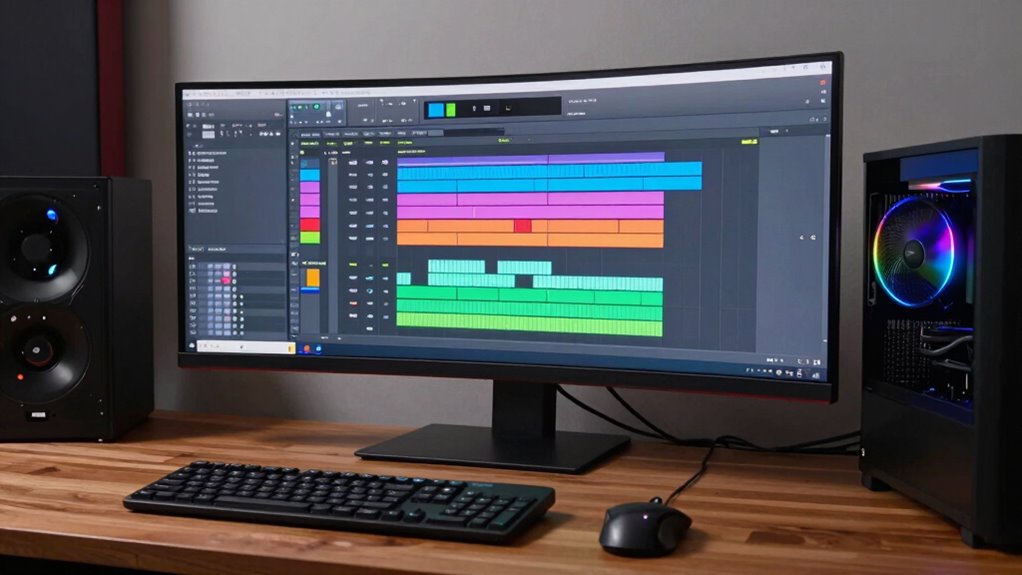

Even on a fast computer, your DAW can feel slow if system bottlenecks, high plugin latency, or improper buffer settings are causing delays. Running too many plugins or effects overloads your CPU, while large buffers add lag, and background processes consume resources. Properly managing project complexity, optimizing system settings, and balancing buffer sizes can improve performance. If you want to learn how to fix these issues effectively, there’s more to explore below.
Key Takeaways
- Improper buffer size settings can cause lag or glitches despite powerful hardware.
- High plugin latency, especially from reverb or virtual instruments, reduces real-time responsiveness.
- Overloading the CPU with too many plugins or complex projects slows down DAW performance.
- Background processes and unnecessary system tasks consume resources, impacting audio processing speed.
- System bottlenecks and misconfigured settings hinder DAW efficiency even on fast computers.
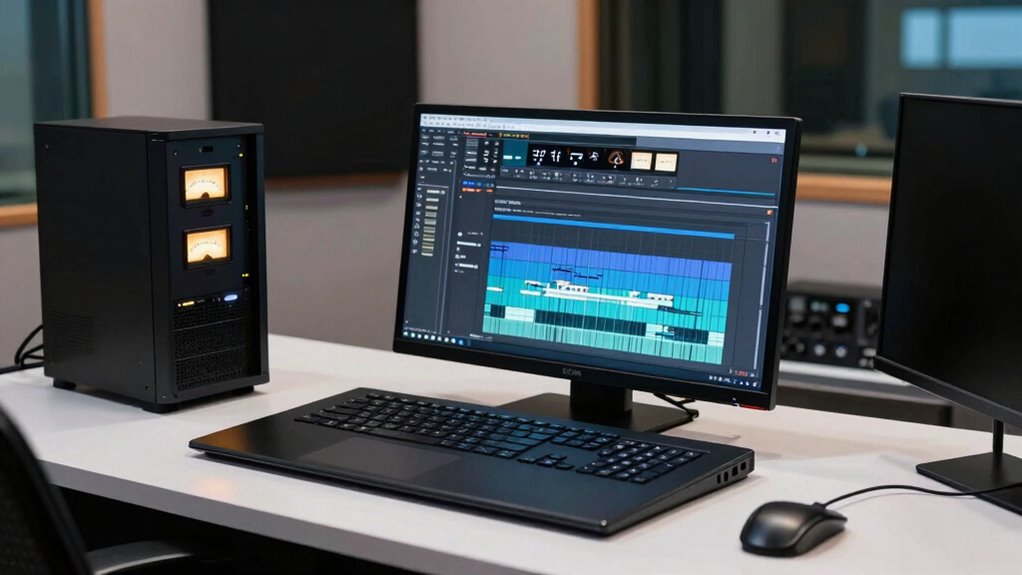
Even on a fast computer, you might find your digital audio workstation (DAW) running slower than expected. This can be frustrating, especially when your hardware seems capable of handling complex projects with ease. One common reason is the way your DAW manages audio processing, particularly through the settings of your audio buffer. The audio buffer acts as a temporary storage area that helps your DAW process audio data smoothly. When the buffer size is too large, your DAW can lag, resulting in noticeable delays or sluggish performance. Conversely, setting the buffer too small may cause your system to struggle, leading to glitches or crackles. Finding the right balance is key to ensuring your DAW runs efficiently, even if your computer is powerful.
Balancing your audio buffer size is key to smooth, responsive DAW performance.
Another factor that contributes to sluggishness is plugin latency. When you insert plugins—especially those that require intensive processing like reverb, EQ, or virtual instruments—they introduce a delay known as plugin latency. This delay can make your workflow feel less responsive, as your DAW has to compensate for the time it takes these plugins to process audio signals. While some latency is unavoidable, excessive plugin latency can make editing and monitoring feel clunky. To minimize this, you might need to freeze or bounce tracks with high-latency plugins or choose more efficient plugins that are optimized for real-time processing.
Beyond buffer size and plugin latency, there’s also the issue of how your DAW handles CPU load. Even on a fast machine, running too many plugins, virtual instruments, or effects simultaneously can overload your CPU. This overload causes your DAW to slow down as it struggles to keep up with the processing demands. Managing your project’s complexity—by bouncing tracks, consolidating effects, or disabling unused plugins—can help keep things running smoothly. Additionally, CPU load management is essential for maintaining optimal performance. Sometimes, optimizing system settings and reducing background processes can free up resources that would otherwise be consumed unnecessarily. Properly monitoring and adjusting your background processes can prevent unnecessary resource consumption during critical recording or editing sessions. Furthermore, understanding the interaction of system components can help you identify bottlenecks that impact your DAW’s responsiveness.
Additionally, background processes and system settings can impact your DAW’s performance. Running multiple applications, automatic updates, or antivirus scans can consume system resources, leaving less available for audio processing. Ensuring your system is optimized for audio work—such as disabling unnecessary background tasks and updating device drivers—can make a significant difference. For example, some systems may have unnecessary background processes running that can be disabled to improve performance.
In essence, even if your computer is powerful, your DAW’s performance depends heavily on how you configure and manage these factors. Adjusting your audio buffer, controlling plugin latency, managing CPU load, and optimizing your system settings can greatly improve responsiveness. It’s all about understanding how these elements interact and making smarter choices to keep your workflow smooth and frustration-free.
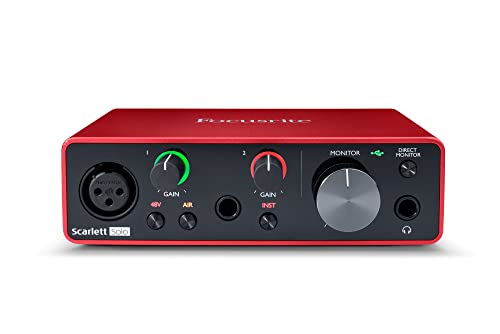
Focusrite Scarlett Solo 3rd Gen USB Audio Interface for Guitarists, Vocalists, Podcasters or Producers to record and playback studio quality sound
Pro performance with great pre-amps – Achieve a brighter recording thanks to the high performing mic pre-amps of…
As an affiliate, we earn on qualifying purchases.
As an affiliate, we earn on qualifying purchases.
Frequently Asked Questions
How Do I Optimize My DAW for Better Performance?
To optimize your DAW, start by checking plugin compatibility to avoid crashes and slowdowns. Adjust your buffer size to reduce interface latency, which helps improve responsiveness during recording and mixing. Disable unnecessary plugins and background processes to free up system resources. Keep your software and drivers updated for better performance. Use a dedicated drive for your sessions and keep your system optimized to guarantee your DAW runs smoothly and efficiently.
Does Updating My Audio Drivers Improve DAW Speed?
Sure, updating your audio drivers can seem like a magical fix, but it’s more like a bandaid for a leaky boat. Yes, it can improve audio latency and guarantee driver compatibility, making your DAW run smoother. However, if your drivers are outdated or incompatible, you’ll still face sluggish performance. So, keep your drivers current, but don’t expect miracles—sometimes, the real fix lies elsewhere.
Can Background Applications Affect DAW Performance?
Yes, background applications can affect your DAW performance. They consume system resources and impact system resource management, leaving fewer resources for your audio work. Running multiple programs in the background, like browsers or antivirus scans, can cause latency and glitches. To improve performance, close unnecessary apps, disable background processes, and prioritize your DAW. This guarantees your system allocates maximum resources for smooth, efficient audio production.
What Plugins Might Slow Down My DAW?
Did you know that nearly 60% of DAW users report slowdowns caused by plugins? Certain plugins, especially resource-heavy ones, can markedly slow your DAW down. Plugins with poor compatibility or those demanding high CPU and RAM can overload your system, causing lag. To keep your workflow smooth, identify and limit resource-heavy plugins, and make sure all plugins are compatible with your DAW and system specs.
Is My Hard Drive Speed Influencing DAW Performance?
Yes, your hard drive speed greatly influences your DAW’s performance. If your hard drive is slow, it can cause lag when accessing large audio files or plugins. To improve this, prioritize storage optimization by using an SSD instead of an HDD, and keep your projects on a fast drive. Regularly defragment your HDD and free up space to guarantee smooth data flow, reducing latency and improving overall stability.
DAW buffer size optimizer
As an affiliate, we earn on qualifying purchases.
As an affiliate, we earn on qualifying purchases.
Conclusion
If your DAW still feels sluggish despite a powerful computer, don’t throw in the towel just yet. Often, the culprit is something simple you overlooked—like unnecessary plugins or background processes. Remember, even the best gear can falter if not properly optimized. Keep troubleshooting and fine-tuning your setup; sometimes, it’s the small tweaks that make a big difference. Stay persistent, because with patience, you’ll get your studio running smoothly again—don’t let the grass grow under your feet.

Cooler Master Hyper 212 Black CPU Air Cooler – 120mm High Performance PWM Fan, 4 Copper Heat Pipes, Aluminum Top Cover, Low Noise & Easy Installation, AMD AM5/AM4 & Intel LGA 1851/1700/1200, Black
Cool for R7 | i7: Four heat pipes and a copper base ensure optimal cooling performance for AMD…
As an affiliate, we earn on qualifying purchases.
As an affiliate, we earn on qualifying purchases.

Mobile App Background Task Management: Expert Approach for Efficient Processing Without Interruptions (Practical Engineering for Game Development, Mobile Apps & DevOps Automation Series)
As an affiliate, we earn on qualifying purchases.
As an affiliate, we earn on qualifying purchases.