
Connecting multiple devices through a USB hub can cause your audio interfaces to disconnect because of power limits and shared bandwidth. If the hub isn’t powered or handles many high-bandwidth devices, your audio interface might lose connection during recording or playback. To prevent this, use a powered hub or connect your audio interface directly to your computer. There’s more to guarantee stability—keep exploring to discover effective solutions.

Get audio and creator gear delivered free with Prime
- Fast, free delivery on millions of items
- Prime Video, Amazon Music and more included
- Member-only deals all year
Key Takeaways
- Insufficient power supply from unpowered hubs can cause audio interfaces to disconnect during use.
- Sharing bandwidth with multiple devices on a hub may lead to audio dropouts or disconnections.
- Connecting audio interfaces directly to the computer or using powered hubs improves stability.
- Using USB 3.0 or higher hubs ensures better data transfer rates, reducing disconnection issues.
- Limiting the number of high-bandwidth devices on a single hub prevents overload and maintains connection stability.

A USB hub is a handy device that expands a single USB port into multiple ports, allowing you to connect more peripherals to your computer or laptop. While this convenience is great, it can sometimes lead to issues like audio interfaces disconnecting unexpectedly. These problems often stem from how the hub manages power and bus bandwidth. When you connect multiple devices, especially power-hungry ones like audio interfaces, the hub needs to allocate sufficient power and data capacity to each device. If either is insufficient, devices may disconnect or behave erratically.
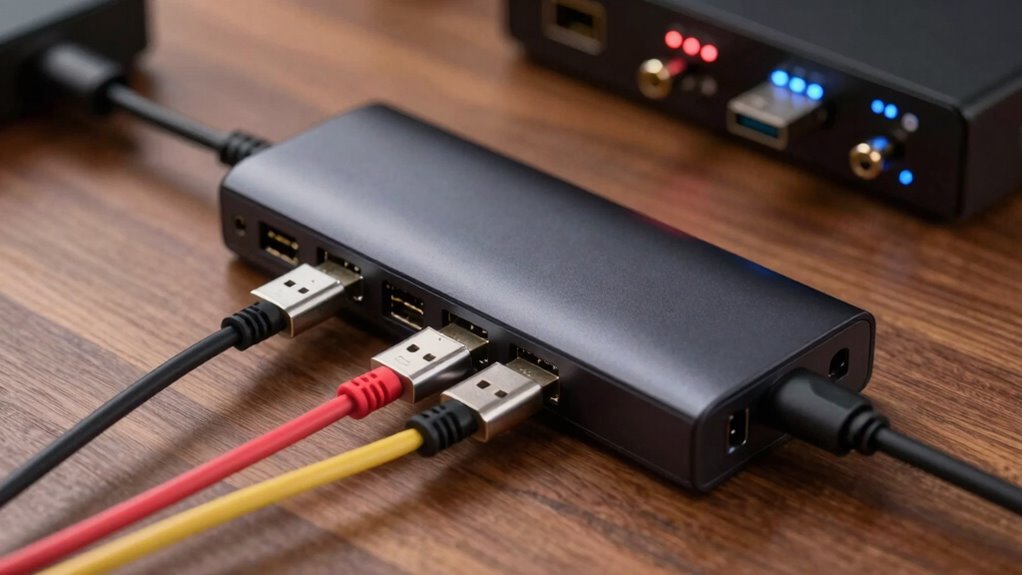
Power management plays an essential role here. Many USB hubs draw power from your computer, but some rely on their own external power supplies. If your hub isn’t powered adequately, it struggles to supply enough current to connected devices, causing audio interfaces to disconnect during recording sessions or playback. To prevent this, always opt for a powered hub when connecting high-power devices. This ensures stable power delivery, reducing the chance of disconnections.
Using powered USB hubs ensures stable power delivery and prevents audio interface disconnections during recording.
Bus bandwidth is equally significant. USB ports have a limited data transfer capacity, known as bus bandwidth. When multiple devices share this bandwidth, they compete for data transfer, which can lead to slowdowns or dropouts. Audio interfaces require a steady and high data rate to transmit audio signals without glitches. If your hub is sharing bandwidth among several devices, your audio interface might not get the necessary throughput, resulting in disconnections or audio dropouts. Limited data transfer capacity is a common challenge that can be mitigated by choosing hubs supporting higher USB standards.
To mitigate these issues, consider the number of devices you connect through a single hub. Avoid connecting too many high-bandwidth peripherals simultaneously. If you’re experiencing audio dropout problems, try disconnecting other devices to free up bus bandwidth for your audio interface. Also, use hubs that support USB 3.0 or higher, as they offer increased bandwidth compared to older standards. This helps guarantee your audio signals stay stable and uninterrupted.
Another tip is to connect your audio interface directly to your computer whenever possible. Hubs are useful, but direct connections typically provide more reliable power and bandwidth. If you must use a hub, choose one with individual dedicated ports or one that explicitly states it supports high-bandwidth devices. Regularly updating your computer’s USB drivers can also improve device stability, as manufacturers often release updates that enhance power management and data transfer efficiency.
powered USB hub for audio interfaces
As an affiliate, we earn on qualifying purchases.
As an affiliate, we earn on qualifying purchases.
Frequently Asked Questions
Can Using a Powered Hub Prevent Disconnects?
Using a powered hub can help prevent disconnects by providing consistent power, reducing issues caused by power management. It also improves port compatibility, ensuring your audio interface gets enough energy to operate smoothly. When you connect your audio interface to a powered hub, you minimize power fluctuations and data transfer problems, leading to more stable connections and fewer disconnections during recording or playback.
Do Specific Brands Cause Fewer Audio Interface Issues?
Think of brands as trustworthy guides in a complex jungle; some navigate smoothly, others stumble. Certain brands are known for better brand compatibility and quality assurance, reducing your audio interface disconnects. Choosing reputable brands guarantees your gear works seamlessly, much like a sturdy bridge over turbulent waters. Investing in well-tested brands minimizes the risk of issues, giving you peace of mind and keeping your creative flow uninterrupted.
How Do I Identify a Faulty USB Port?
To identify a faulty port, start troubleshooting by disconnecting your audio interface and plugging it into different USB ports. If it disconnects repeatedly or doesn’t recognize the device, you likely have a faulty port. Check for physical damage or debris. You can also test the port with other devices to see if they face similar issues. These steps help pinpoint whether the port or your device is causing the problem.
Are There Risks in Daisy-Chaining Multiple Hubs?
Daisy-chaining multiple hubs can increase risks like power surge and data corruption, especially if they’re not powered or quality-approved. When you connect multiple hubs, your setup might draw more power or cause signal interference, leading to disconnections or data loss. To prevent these issues, use powered hubs and limit the number of devices on each chain. This ensures stable connections and protects your audio interface from potential damage.
How Often Should I Update My Device Drivers?
You should update your device drivers whenever you notice issues or after major Windows updates, as coincidence often brings new bugs or hardware compatibility problems. Regular driver updates help guarantee your audio interface stays connected and functions smoothly. Think of it like keeping your gear in top shape—checking for updates every few months or when new features roll out keeps your setup reliable and prevents unexpected disconnects.
Conclusion
To keep your audio interface connected, you need to choose the right hub, power it properly, and connect it directly to your computer. You need to avoid hubs that are underpowered, hubs that share bandwidth with too many devices, and ports that are far from your computer. You need to stay aware of your setup, troubleshoot issues early, and prioritize stability over convenience. By doing so, you’ll guarantee your audio connection remains reliable, clear, and consistent every time.
Evergreen bestsellers Picks
bestsellers
As an affiliate, we earn on qualifying purchases.