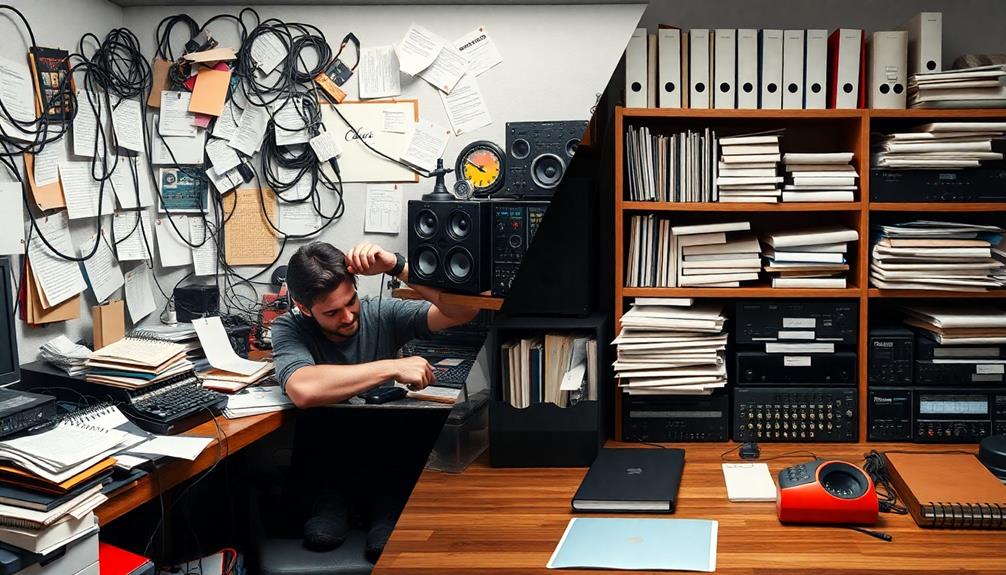
Using a fast external SSD helps you access samples quickly and keeps your projects organized, reducing file chaos. It provides speedy transfer rates and reliable storage, so you spend less time waiting and more time creating. Make sure your drive connects via compatible ports like USB-C or Thunderbolt for peak performance. Pair it with cloud backups for added security. Keep your workflow smooth and efficient—continue to explore how to maximize these tools even further.
Key Takeaways
- Use high-speed external SSDs with compatible interfaces like USB-C or Thunderbolt for quick sample access.
- Organize files into clear folders and naming conventions to prevent chaos and streamline workflow.
- Regularly back up samples to the cloud to ensure data security and quick recovery if needed.
- Connect your SSD directly to your computer to maximize data transfer speeds and reduce bottlenecks.
- Keep your system and SSD firmware updated for optimal compatibility and performance during editing sessions.

Using an external SSD can substantially streamline your workflow by providing fast, reliable storage for your files and projects. When you’re working with large media files, high-resolution samples, or multiple versions of a project, speed matters. An external SSD delivers quick data transfer rates, so you spend less time waiting for files to load or save. This efficiency allows you to focus more on the creative process rather than technical hiccups. Plus, with rapid access to your files, you can switch between tasks seamlessly, maintaining your momentum without interruption.
When contemplating an external SSD, it’s vital to think about hardware compatibility. Not all drives work equally well with every computer or operating system. Checking compatibility ensures your device connects properly and functions at peak performance. Modern SSDs typically support USB-C, Thunderbolt, or USB 3.0 interfaces, which are widely compatible with most contemporary laptops and desktops. Ensuring your hardware supports these standards avoids connection issues and lets you harness the full speed potential of your SSD. Compatibility also extends to your system’s file system—whether you’re using NTFS, exFAT, or APFS—so make sure your drive’s formatting aligns with your workflow needs. Additionally, understanding the contrast ratio of your display setup can help optimize your viewing environment for better color accuracy and image quality during editing.
Another key aspect to weigh is integrating cloud backup options. An external SSD acts as an excellent primary storage device, but combining it with cloud backup creates a robust safety net for your data. If your external drive fails or gets lost, your files stay secure in the cloud. Many cloud services now offer seamless synchronization with local folders, so you can automatically back up your work as you go. This setup minimizes the risk of data loss and simplifies recovery, especially when working on collaborative projects or sensitive files. Having your data backed up both locally on an external SSD and remotely via the cloud ensures you’re protected against hardware failures, theft, or accidental deletion.
In essence, using an external SSD enhances your efficiency and keeps your workflow organized. Pairing it with vigilant hardware compatibility checks and reliable cloud backup options means your files are accessible, safe, and ready whenever you need them. The combination of speed, compatibility, and security lets you focus on creating without the chaos of sluggish load times or fear of losing your work. With this setup, you’ll experience smooth, uninterrupted productivity and maintain control over your projects from start to finish.
Frequently Asked Questions
What Are the Best External SSD Brands for Music Production?
You should consider brands like Samsung, SanDisk, and Western Digital for music production. They have strong reputations for reliability and performance. When comparing prices, Samsung’s T7 series offers excellent speed at a reasonable cost, while SanDisk and WD provide durable options. Ultimately, you want an external SSD with fast transfer speeds, good reviews, and a price that fits your budget, ensuring smooth workflow without risking data loss.
How Do I Ensure Data Security on External SSDS?
To guarantee data security on external SSDs, you should adopt strong encryption practices like hardware or software encryption to protect your files. Regularly update your passwords and enable two-factor authentication if available. Also, develop solid backup strategies, such as maintaining copies on separate drives or cloud storage, so you can recover data if the SSD is lost or compromised. These steps keep your music production files safe and accessible.
Can External SSDS Be Used for Real-Time Audio Streaming?
Think of your external SSD as a busy highway, where smooth traffic flow depends on effective buffer management and transfer protocols. Yes, you can use it for real-time audio streaming, but only if you optimize these factors. Proper buffer management prevents lag, while efficient transfer protocols guarantee data moves swiftly. When you set these up right, your audio streams flow seamlessly, like cars gliding smoothly on a well-maintained road.
What Is the Ideal SSD Storage Capacity for Large Sample Libraries?
For large sample libraries, you should opt for an SSD with at least 2TB capacity to guarantee ample space for your projects. This allows you to keep your samples readily accessible without constantly moving files. Prioritize SSDs with high data transfer speeds to streamline your workflow. Don’t forget to back up your library to the cloud regularly, safeguarding your data against hardware failures while maintaining quick access.
How Do I Optimize My Workflow for Minimal Latency?
To enhance your workflow for minimal latency, focus on efficient buffer management and use high-speed hardware interfaces like Thunderbolt or USB 3.2. Keep your sample libraries on a dedicated SSD, ensuring quick access and reduced bottlenecks. Regularly adjust buffer sizes in your DAW settings to balance latency and stability. Also, minimize background processes and maintain updated drivers for ideal hardware performance.
Conclusion
So, after all that fuss about organizing your external SSD, you might think it’s just another chore. But really, with a streamlined workflow, you’ll enjoy blazing speeds and tidy samples—without the chaos. Ironically, the more you plan, the less chaos you’ll face. So go ahead, embrace the order, and watch your productivity soar. Who knew that a little structure could make you feel like a tech genius? Happy editing!