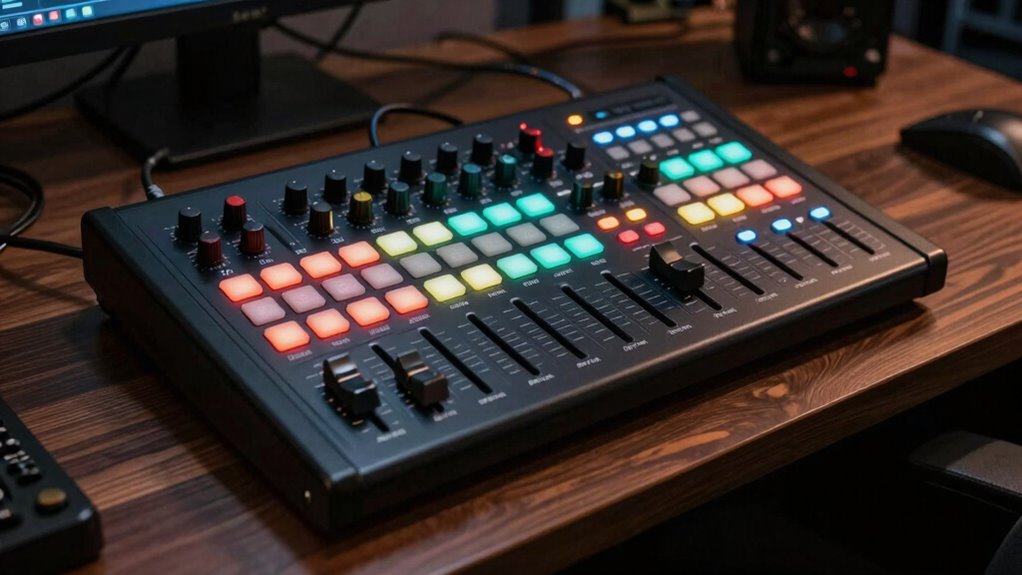
To make certain your control surface mapping stays put, focus on precise calibration and consistent setup. Regularly recalibrate controls to prevent drift, and avoid changing mappings once they’re established. Use templates or profiles to lock in your preferred layout across projects. Maintain your hardware and software updates to prevent misalignments. When you follow these steps, your controls will stay reliable and responsive, allowing you to work smoothly—if you want to learn more, keep exploring for expert tips.
Key Takeaways
- Use dedicated profiles or templates to maintain consistent control mappings across projects.
- Regularly calibrate your control surface to prevent drift and ensure settings stay accurate.
- Avoid frequent remapping; establish fixed layouts to build muscle memory and workflow stability.
- Save your control surface configuration after setup to preserve mappings during software updates or restarts.
- Periodically review and refine control assignments to adapt to evolving workflow needs and prevent accidental changes.

Ever wondered how to optimize your control surfaces for a seamless workflow? The secret lies in proper setup and ongoing maintenance. When you start, focus on hardware calibration. This step ensures that your physical controls—knobs, sliders, buttons—accurately reflect what’s happening in your software. If calibration is off, you might find yourself twisting a knob and seeing no change or, worse, making adjustments that don’t correspond to your intended parameter. Take the time to calibrate each control precisely, following your device’s instructions. This often involves entering calibration mode, moving controls through their full range, and saving the settings. Proper hardware calibration not only improves accuracy but also prevents frustration during critical editing sessions. hardware calibration is essential for maintaining control accuracy over time.
Once your hardware is calibrated, turn your attention to user interface design. Your control surface’s layout should mirror your workflow to reduce confusion and speed up processes. Map frequently used functions to easily accessible controls, and assign rarely used features to less prominent buttons. The goal is intuitive control—if you find yourself constantly hunting for a specific function, reassign it to a more convenient button or knob. Many DAWs and control surface software allow customization, so spend time designing an interface that feels natural to your style. Keep in mind that a well-designed user interface minimizes cognitive load, letting you focus on your creative work instead of fumbling with controls.
Consistency is key. Once you map your controls, avoid frequent changes unless necessary. Consistent control mappings help your muscle memory develop, making your workflow more fluid. If you work on multiple projects or switch between different setups, consider creating templates or profiles that can be quickly loaded. This saves time and reduces errors caused by inconsistent mappings. Regularly review and refine your control layout as you become more familiar with your setup. What worked initially might become inefficient over time, so adapt your configuration to match your evolving needs.
Finally, remember that ongoing hardware calibration is crucial to maintaining accuracy. Over time, controls can drift, or your system might experience updates that affect calibration. Periodically revisit calibration procedures to ensure everything remains aligned. Combining meticulous hardware calibration with a thoughtful user interface design transforms your control surface from a basic input device into a powerful extension of your creative process. With these practices, your mappings stay put, and your workflow remains smooth, precise, and efficient—letting you focus on what truly matters: making great music or audio.
Frequently Asked Questions
How Do I Troubleshoot Unresponsive Mapped Controls?
If your mapped controls are unresponsive, start by checking your custom mapping workflows to ensure everything is correctly assigned. Troubleshooting hardware conflicts is also vital—disconnect other devices that might interfere. Restart your DAW and control surface to reset connections. Update firmware and drivers if needed. Confirm that your control surface’s settings match your software configuration. These steps help identify and fix issues, making your controls stay responsive.
Can I Customize MIDI Mappings for Different Projects?
Yes, you can customize MIDI mappings for different projects. Most DAWs allow you to create project presets with custom mappings, so you can tailor controls to each session. Simply set up your desired custom mapping, then save it as a preset. When you open a new project, load the specific preset to guarantee your mappings stay consistent. This way, your control surface setup adapts seamlessly to your workflow.
What Are the Best Practices for Organizing Complex Control Layouts?
To organize complex control layouts effectively, you should prioritize visual organization and ergonomic design. Arrange controls logically, grouping related functions together and using clear labels or color codes for quick identification. Keep frequently used controls within easy reach to improve workflow. Regularly review and refine your layout to guarantee it remains intuitive. This approach minimizes errors and boosts efficiency, making your setup more user-friendly and adaptable to different projects.
How Do Firmware Updates Affect Existing Mappings?
Firmware updates can impact your existing mappings by affecting firmware compatibility, which might cause your mappings to reset or behave unexpectedly. To guarantee mapping persistence, always back up your current configuration before updating. After updating, double-check your mappings and reassign controls if needed. Regularly updating firmware helps maintain compatibility and stability, but proactive backups are key to preserving your setup’s integrity and avoiding disruptions.
Are There Compatibility Issues With Specific DAWS?
Think of your DAW as a key, and your control surface as a lock. Some locks fit perfectly, guaranteeing smooth MIDI compatibility and seamless DAW integration, while others might require an adapter. Compatibility issues can arise with certain DAWs, especially if they’re outdated or have unique configurations. Always check your control surface’s specifications against your DAW’s requirements to ensure a tight fit, keeping your workflow flowing without hiccups.
Conclusion
Now that you’ve set up your control surfaces, you’re almost there. But what if that perfect mapping suddenly shifts when you least expect it? Keep an eye on those settings, because sometimes, the tiniest tweak can make all the difference. Stay vigilant—your workflow depends on it. The real test begins when you hit record and trust that everything stays exactly where you left it. Ready to see if your setup can handle the pressure?