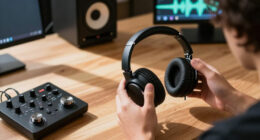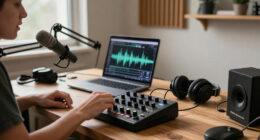
Pair your wireless Bluetooth headphones with a phone, tablet, or computer, then test audio, microphone, and basic controls. This beginner guide takes about 10–20 minutes and covers common setup problems across devices; menu names can vary by operating system and headphone model.

Get audio and creator gear delivered free with Prime
- Fast, free delivery on millions of items
- Prime Video, Amazon Music and more included
- Member-only deals all year

Soundcore by Anker Q20i Hybrid Active Noise Cancelling Over-Ear Headphones, Black
- ✔ Design: Over-ear, folding
- ✔ Wireless connection: Bluetooth
- ✔ Wired connection: AUX; included cable

MMWOWARTS H2 Hybrid Active Noise Cancelling Bluetooth Headphones
- ✔ Design: Over-ear
- ✔ Wireless connection: Bluetooth 6.0
- ✔ Noise control: Hybrid active noise cancellation
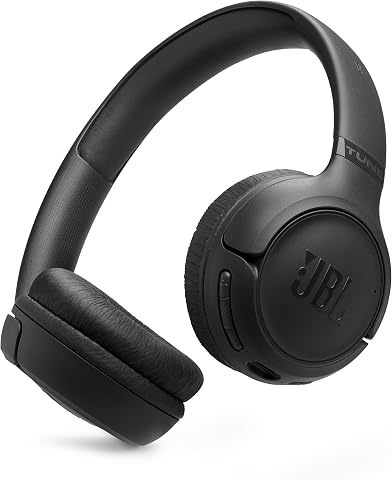
JBL Tune 530BT Wireless On-Ear Bluetooth Headphones, Black
- ✔ Design: Wireless on-ear; folds flat
- ✔ Wireless connection: Bluetooth 6.0
- ✔ Drivers: 33 mm
Difficulty: Beginner | Time: 10–20 minutes
What You’ll Need
Tools & Materials:
- Bluetooth headphones and their charging cable or case
- A phone, tablet, or computer with Bluetooth
- The headphone manual or manufacturer support page, if the pairing controls are unclear
Knowledge:
- Basic ability to open Bluetooth settings and select a device
Charge the headphones before pairing. Keep the device and headphones close together, and check the manual for model-specific pairing instructions. If you plan to use a computer for calls, confirm it has a working microphone input.
Soundcore by Anker Q20i Hybrid Active Noise Cancelling Over-Ear Headphones, Black
The Soundcore Q20i earns our top spot by offering the most adaptable set of wireless listening tools in this group. Its ANC, Normal, and Transparency modes let us choose between reducing surrounding sound and staying more aware of it; the JBL Tune 530BT and MMWOWARTS H2 descriptions do not list comparable selectable modes. That flexibility can be useful when a single pair moves between a commute, desk time, and a walk where hearing nearby activity matters.Its multipoint connection pairs with two devices, which helps when we switch between a laptop and phone without repeatedly pairing. The soundcore app adds EQ customization and BassUp, so we have more control over the sound profile than the JBL’s listed EQ presets. The tradeoff is that the Q20i’s stated battery life is up to 40 hours with ANC on, shorter than the JBL’s 76 hours and the H2’s 120 hours. It also folds for storage but remains an over-ear design, so it does not match the JBL for compact carrying.The included AUX cable gives the Q20i a wired fallback and supports Hi-Res audio, but ANC is unavailable in AUX mode. This model makes the most sense when wireless versatility and sound adjustment count for more than maximum battery life. We would look elsewhere if we want the fewest charging intervals or prefer a lighter on-ear fit.
Pros:
- Three listening modes include ANC, Normal, and Transparency.
- Multipoint connection supports two paired devices.
- The app provides EQ customization and BassUp.
- Up to 40 hours of playtime with ANC on, plus quick charging.
Cons:
- ANC is unavailable while listening through AUX.
- Hi-Res audio is supported through the AUX cable, not listed as a Bluetooth feature.
- Its stated ANC-on battery life is shorter than the H2 and JBL figures.
Best for: Listeners who want noise-control modes, app-based EQ, and easy switching between a phone and computer.
Not ideal for: Anyone prioritizing the longest listed battery life, ANC during wired AUX listening, or the smallest carry size.
Bottom line: We recommend the Q20i for its unusually flexible combination of wireless noise control, device switching, and app sound options.
“We recommend the Q20i for its unusually flexible combination of wireless noise control, device switching, and app sound options.”
MMWOWARTS H2 Hybrid Active Noise Cancelling Bluetooth Headphones
If charging frequency is our main concern, the MMWOWARTS H2 has the standout claim in this lineup: up to 120 hours of battery life. That makes it the obvious candidate for extended listening between charges, though the product details do not specify whether that figure assumes ANC is on. The Q20i, by comparison, gives a more clearly stated figure of up to 40 hours with ANC enabled; buyers should keep that difference in mind when comparing the numbers.The H2 pairs that long-life focus with hybrid active noise cancellation and memory foam ear cups. Its over-ear cushions may appeal to listeners who want their ears surrounded, while the JBL Tune 530BT’s on-ear pads rest on the ears and its fold-flat design is easier to pack. The listing claims up to 95% reduction of ambient noise, but it does not provide a measurement method or a directly comparable result for the other models, so we would not use that figure alone to predict real-world performance.The main cost of this endurance-oriented design is convenience: over-ear headphones take up more room than the JBL, and the stated 90-day warranty is shorter than the JBL’s one-year warranty. The description also mentions quick charging without specifying the charge time. Choose the H2 if long battery life and cushioned over-ear construction are the priorities; skip it if portability, a longer stated warranty, or clearly detailed charging terms matter more.
Pros:
- Lists up to 120 hours of battery life.
- Hybrid ANC is included.
- Memory foam ear cups and an adjustable headband are designed for comfort.
- Bluetooth 6.0 connectivity.
Cons:
- The over-ear design is bulky for pocket storage.
- The stated warranty is 90 days.
- The battery-life claim does not specify whether ANC is enabled.
Best for: Listeners who want an over-ear wireless pair with a very long stated battery life for extended use.
Not ideal for: Travelers who need a compact pair, or buyers who prioritize a longer warranty and detailed charging specifications.
Bottom line: The H2 is our endurance pick for listeners drawn to its long stated runtime and cushioned over-ear fit, provided they can accept its bulk and short warranty.
“The H2 is our endurance pick for listeners drawn to its long stated runtime and cushioned over-ear fit, provided they can accept its bulk and short warranty.”
JBL Tune 530BT Wireless On-Ear Bluetooth Headphones, Black
The JBL Tune 530BT takes a different route from the two over-ear models: its on-ear design folds flat, making it the most straightforward choice here for carrying in a bag. It also lists up to 76 hours of battery life, more than the Q20i’s ANC-on figure, though less than the H2’s stated maximum. A five-minute charge is listed as providing up to five hours of playtime, which gives us a useful short-charge option when time is tight.For sound, JBL specifies 33 mm drivers, Pure Bass Sound, and app EQ presets. That is a simpler adjustment story than the Q20i’s customizable app EQ and BassUp, but it still offers a way to choose among presets. The Tune 530BT also has two beamforming microphones for calls and multipoint Bluetooth 6.0 for switching between two devices. In contrast with the Q20i, its supplied details do not list ANC or a Transparency mode, so it is a less suitable pick when noise control is central to the purchase.Fit is the key decision. On-ear pads can feel less enclosing than the Q20i and H2’s over-ear cups, but they press directly against the ears, which some listeners may find uncomfortable over long sessions. JBL also does not include a USB-C charging cable, although a standard compatible cable can be used. We would choose this model for portability and battery life, while buyers seeking ANC or over-ear cushioning should favor one of the other two.
Pros:
- On-ear design folds flat for carrying.
- Lists up to 76 hours of battery life.
- Multipoint Bluetooth 6.0 connects to two devices.
- Two beamforming microphones are designed to help with call clarity.
Cons:
- On-ear pads may not suit listeners who prefer over-ear comfort.
- ANC is not listed among the features.
- A USB-C charging cable is not included.
Best for: Commuters and travelers who want fold-flat wireless headphones with long listed battery life and multipoint pairing.
Not ideal for: Listeners who need active noise cancellation or prefer padded ear cups that surround the ears.
Bottom line: The Tune 530BT is the portable pick for listeners who value a fold-flat build and long battery life over active noise cancellation.
“The Tune 530BT is the portable pick for listeners who value a fold-flat build and long battery life over active noise cancellation.”
As an Amazon Associate we earn from qualifying purchases.
Before You Start
Bluetooth headphones usually need to be placed in pairing mode before a device can find them. Turning the headphones on may not activate pairing mode. If they have connected to another phone or computer before, they may reconnect to that device automatically; disconnect them there if pairing fails. Keep the headphones away from other active Bluetooth devices during setup.
Step-by-Step Instructions
Step 1: Charge and inspect the headphones
Charge the headphones or their case, then remove any protective film covering the charging contacts. Check that the ear cups, earbuds, buttons, and charging port are free of packaging or debris. Read the quick-start instructions to find the power and pairing controls.
Tip:Some earbuds enter pairing mode when you take them out of a charged case; others require holding a button. Follow the instructions for your exact model.
Check: The headphones power on, show a light or sound cue, and have enough charge for setup.
Step 2: Put the headphones in pairing mode
Turn on the headphones and activate pairing mode using the method in the manual, such as holding the power or Bluetooth button. For earbuds, open the case or hold the case button if the instructions call for it. Wait for the pairing cue, often a flashing light or spoken prompt.
Tip:If the headphones announce that they are connected to another device, disconnect or turn off Bluetooth on that device before trying again.
Check: The headphones give their pairing cue and remain ready to connect.
Step 3: Open Bluetooth settings on your device
Open Bluetooth settings on the phone, tablet, or computer you want to use. Turn Bluetooth on, then choose the option to add, pair, or connect a device if the system does not scan automatically. Keep the settings screen open while it searches.
Tip:On many phones, Bluetooth is under Settings. On computers, look in system settings for Bluetooth or connected devices. Menu labels differ between operating system versions.
Check: The device begins searching and displays a list of nearby Bluetooth devices.
Step 4: Select the headphones from the device list
Tap or click the name that matches your headphones. If several similar names appear, check the model name on the headphones, packaging, or manual. Accept a pairing prompt if one appears. Enter a code only if the device requests one and the manual provides it.
Tip:Do not select an unfamiliar device just because its name looks similar. If the headphones do not appear, return them to pairing mode and refresh the device list.
Check: The headphones show as connected or paired in Bluetooth settings, and the headphones give a connection cue.
Step 5: Choose the headphones for audio output
Start playing a familiar song or video. If you hear sound from the device speakers, open its sound or audio settings and select the headphones as the output. For computer calls, choose the headphones as the microphone input too, if you want to use their built-in microphone.
Tip:Some computers show separate headphone and headset options. The headset option usually enables the microphone but may reduce playback quality during a call.
Check: Audio plays through both sides of the headphones at a comfortable volume.
Step 6: Test the controls and microphone
Use the headphones’ volume, play or pause, and call controls while audio is playing. If you plan to make calls, record a short voice memo or place a test call and check that the other person can hear you. Adjust volume on both the headphones and device if either control affects loudness.
Tip:Touch controls may require a tap or press-and-hold. Check the manual if a control behaves differently than expected.
Check: Playback controls respond as described, and the microphone captures your voice clearly if you tested it.
Step 7: Check reconnection before putting them away
Turn the headphones off, then turn them on again near the same device. Wait briefly for them to reconnect. If they do not, open Bluetooth settings and connect them from the paired-device list. Once connected, stop playback and store the headphones in their case or a safe place.
Tip:Many headphones remember several devices but connect to only one or two at a time. A nearby device may take the connection first.
Check: The headphones reconnect to the intended device and play audio without repeating the full pairing process.
Common Mistakes to Avoid
- Opening Bluetooth settings before the headphones are in pairing mode. — Activate pairing mode first and look for the model’s flashing light or spoken pairing cue before scanning.
- Trying to pair while the headphones are connected to another device. — Disconnect them from the old device or temporarily turn off its Bluetooth, then repeat pairing mode.
- Assuming pairing automatically selects the headphones for every kind of audio. — Check the device’s output and, for calls, microphone settings after the connection is made.
Troubleshooting
Problem: The headphones do not appear in the Bluetooth device list.
Solution: Move them closer, charge them, activate pairing mode again, and refresh the list. Turn off Bluetooth on other devices they may connect to. If they still do not appear, restart Bluetooth on the device and consult the headphone manual for a reset procedure.
Problem: The device says the headphones are paired, but there is no sound.
Solution: Select the headphones as the audio output, raise volume on both devices, and check that playback is not paused or muted. Disconnect and reconnect the headphones if the output setting appears correct.
Problem: The sound cuts out or only one earbud plays.
Solution: Keep the source device nearby and remove obstacles between it and the headphones. Charge both earbuds and place them in the case briefly, then reconnect. If the issue continues, check the manual for earbud synchronization or reset steps.
Problem: The microphone does not work during a call.
Solution: Select the headphones as the call microphone in the app or system settings, and allow microphone access when prompted. Disconnect and reconnect the headphones, then make another test call.
What Success Looks Like
The Bluetooth settings show the headphones as connected, audio plays through both sides, and the controls respond. If you need calls, the selected microphone captures your voice. After turning the headphones off and on, they reconnect to the intended device or remain available in its paired-device list.
Next Steps
Charge the headphones after use and store them as the manufacturer recommends. To connect a second device, follow the manual’s multipoint or additional-device pairing steps; some models require disconnecting the first device. If connection problems return, remove the headphones from the device’s paired list and pair them again using the model’s instructions.
Frequently Asked Questions
Do I have to pair the headphones every time I use them?
Usually not. Once paired, headphones normally reconnect when they are turned on and near the device. You may need to select them from the paired-device list if they connect elsewhere or do not reconnect automatically.
Why can I see the headphones on one device but not another?
They may already be connected to the first device or may not support simultaneous connections. Disconnect them from the first device, activate pairing mode again, and scan from the second one. Check the manual for multipoint support.
Can I pair Bluetooth headphones with a computer?
Yes, if the computer supports Bluetooth. Add the headphones in the computer’s Bluetooth settings, then select them for sound output and, when needed, microphone input.
What should I do if I forget the headphones in Bluetooth settings?
Choose the option to remove or forget the headphones, then put them in pairing mode and pair them again. Use the manual’s reset instructions if the device still cannot find them.