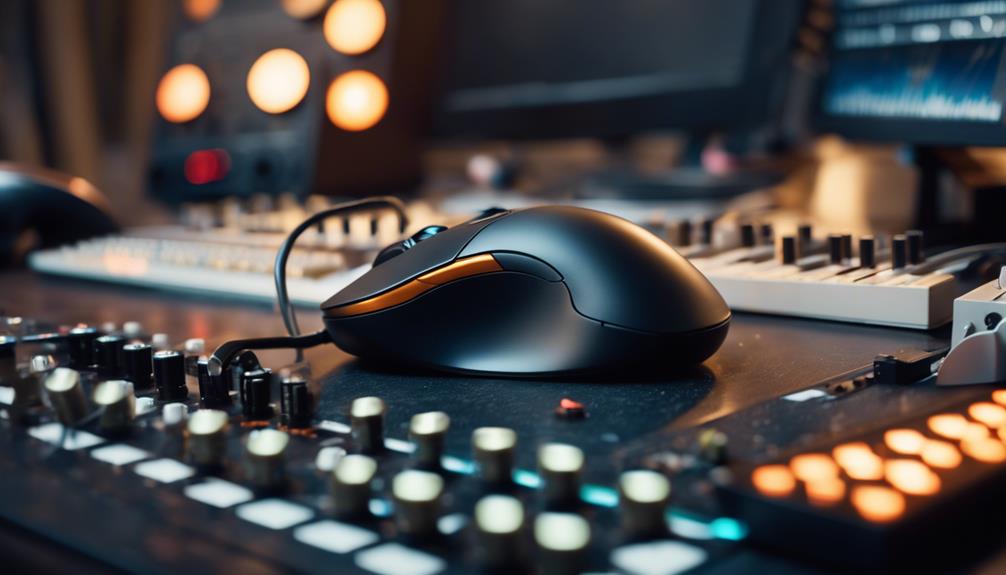

A music production mouse should make editing, arranging, and mixing feel controlled without adding strain during long sessions. My best overall pick is the Logitech MX Master 4, thanks to its ergonomic design, haptics, and fast scrolling; the MX Master 3S is a strong alternative for producers who want a familiar premium workflow, while the Logitech Ergo M575S suits compact desks and users who prefer a trackball. The main tradeoffs are between programmable controls and simpler setups, traditional mouse movement and trackball precision, and wireless flexibility and wired reliability. A gaming mouse may offer more remappable buttons, but it can be bulkier or more feature-heavy than a music workflow needs. Read on for the full breakdown and help matching the right mouse to your studio habits.

Get audio and creator gear delivered free with Prime
- Fast, free delivery on millions of items
- Prime Video, Amazon Music and more included
- Member-only deals all year
Complete the kit


Key Takeaways
- The Logitech MX Master 4 leads for all-around DAW work: it combines an ergonomic shape, haptics, and fast scrolling, while the MX Master 4 for Mac offers a more platform-specific alternative.
- Trackballs stand apart by reducing desk movement: the Logitech Ergo M575S, Nulea M501, and ELECOM Huge are better fits for limited space or users who want cursor control without sweeping the mouse across a surface.
- Multi-device switching is useful beyond office work: the TECKNET and Logitech M720 make sense for producers who move between a studio computer, laptop, or tablet.
- Gaming controls are not automatically better for production: the Redragon M612 and Logitech G502 Hero offer remappable buttons, but their gaming-oriented feature sets may be unnecessary for a straightforward DAW setup.
- Ergonomics comes in different forms: the ProtoArc EM11 NL changes wrist and forearm position with a vertical design, while the Logitech Signature M650 L favors a more conventional full-size shape.
| Redragon M612 Wired RGB Optical Gaming Mouse, 8000 DPI, Remappable Keys |  | Best for Macro-Heavy Sessions | Connectivity: USB wired | Maximum sensitivity: 8000 DPI | Buttons: 11 | VIEW ON AMAZON | See Our Full Breakdown |
| Ergonomic Wireless Trackball Mouse with Adjustable 0°/18° Tilt |  | Best for Adjustable Wrist Positioning | Connectivity: Bluetooth and USB | Movement detection: Thumb-controlled trackball | Maximum sensitivity: 4800 DPI | VIEW ON AMAZON | See Our Full Breakdown |
| Logitech G502 Hero Wired Gaming Mouse – Black |  | Best for Fine Cursor Tuning | Connectivity: USB wired | Sensor: HERO optical | Maximum sensitivity: 25,600 DPI | VIEW ON AMAZON | See Our Full Breakdown |
| ELECOM Huge Trackball Mouse, 2.4GHz Wireless, Index Finger Control |  | Best for Stationary, Large-Trackball Control | Connectivity: 2.4 GHz wireless USB | Trackball: 52 mm, index-finger control | DPI settings: 500, 1000, and 1500 | VIEW ON AMAZON | See Our Full Breakdown |
| TECKNET Wireless Mouse, Bluetooth Rechargeable, 3-Device Switching, 6 DPI Levels, Side Scroll |  | Best for Multi-Device Studio Desks | Connectivity: Bluetooth and USB-A wireless | Device switching: Up to 3 devices | Maximum sensitivity: 4800 DPI | VIEW ON AMAZON | See Our Full Breakdown |
| Logitech M720 Triathlon Full Size Multi-Device Wireless Mouse – Black | 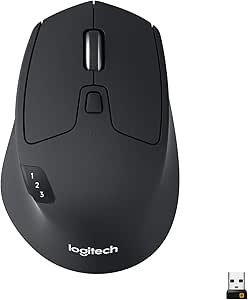 | Best for Multi-Computer Studios | Connectivity: Bluetooth, USB | Buttons: 6 | Hand orientation: Right | VIEW ON AMAZON | See Our Full Breakdown |
| Logitech MX Master 4 Ergonomic Wireless Mouse with Haptics – Graphite |  | Best for Custom DAW Navigation | Connectivity: Bluetooth, radio frequency, USB | Buttons: 7 | Maximum sensitivity: 8,000 dpi | VIEW ON AMAZON | See Our Full Breakdown |
| Logitech Signature M650 L Full Size Wireless Mouse – Black |  | Best for Quiet, Comfortable Sessions | Connectivity: Bluetooth, Logi Bolt | Buttons: 3 | Maximum sensitivity: 4,000 dpi | VIEW ON AMAZON | See Our Full Breakdown |
| Logitech Ergo M575S Wireless Bluetooth Trackball Mouse – Graphite Blue Ball | 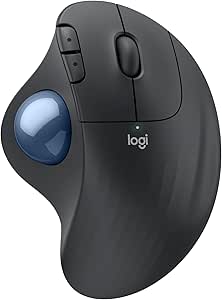 | Best for Small Desks and Reduced Arm Movement | Connectivity: Bluetooth, USB | Movement detection: Trackball | Buttons: 2 | VIEW ON AMAZON | See Our Full Breakdown |
| Logitech MX Master 4 for Mac, Ergonomic Bluetooth Mouse with Haptic Feedback and Ultra-Fast Scrolling |  | Best for Mac-Centered Production | Connectivity: Bluetooth | Compatibility: macOS, iPadOS, Windows | Scroll speed: Up to 1,000 lines per second | VIEW ON AMAZON | See Our Full Breakdown |
| ProtoArc EM11 NL Wireless Ergonomic Vertical Mouse, Rechargeable, Black |  | Best for Wrist-Friendly Multi-Device Work | Connectivity: 2.4GHz USB-A receiver and Bluetooth | DPI levels: 1000, 1600, and 2400 | Battery: 500mAh rechargeable Li-ion | VIEW ON AMAZON | See Our Full Breakdown |
| Nulea M501 Wireless Trackball Mouse Ergonomic Thumb Control with 4 DPI Levels |  | Best for Compact, Stationary Editing | Connectivity: Bluetooth | Movement detection: Thumb-operated trackball | DPI: Four adjustable levels | VIEW ON AMAZON | See Our Full Breakdown |
| Logitech MX Master 3S Bluetooth Wireless Mouse – Graphite |  | Best for Customizable DAW Control | Connectivity: Bluetooth | Sensor: Darkfield high precision | Maximum sensitivity: 8000 DPI | VIEW ON AMAZON | See Our Full Breakdown |
| music production mouse | Connectivity | Buttons | Maximum sensitivity | Compatibility |
|---|---|---|---|---|
| Redragon M612 Wired RGB Optica | USB wired | 11 | 8000 DPI | Windows and macOS |
| Ergonomic Wireless Trackball M | Bluetooth and USB | 8 | 4800 DPI | Windows, macOS, Chrome OS, and Android |
| Logitech G502 Hero Wired Gamin | USB wired | 11 programmable | 25,600 DPI | PC |
| ELECOM Huge Trackball Mouse | 2.4 GHz wireless USB | 8 | — | Windows 7/8/10 and macOS 10.12 or later |
| TECKNET Wireless Mouse | Bluetooth and USB-A wireless | 7, non-programmable | 4800 DPI | Windows, Mac, Chromebook, and Linux |
| Logitech M720 Triathlon Full S | Bluetooth, USB | 6 | 1,000 dpi | — |
| Logitech MX Master 4 Ergonomic | Bluetooth, radio frequency, USB | 7 | 8,000 dpi | — |
| Logitech Signature M650 L Full | Bluetooth, Logi Bolt | 3 | 4,000 dpi | — |
| Logitech Ergo M575S Wireless B | Bluetooth, USB | 2 | 2,000 dpi | — |
| Logitech MX Master 4 for Mac | Bluetooth | — | — | macOS, iPadOS, Windows |
| ProtoArc EM11 NL Wireless Ergo | 2.4GHz USB-A receiver and Bluetooth | 7 | — | Windows 8/10, Mac OS X 10.12 or later, and Android 4.3 or later |
| Nulea M501 Wireless Trackball | Bluetooth | 6 | — | PC, laptop, iPad, Mac, and Windows |
| Logitech MX Master 3S Bluetoot | Bluetooth | 7 | 8000 DPI | Windows, macOS, Linux, Chrome OS, iPadOS, and Android |
More Details on Our Top Picks
Redragon M612 Wired RGB Optical Gaming Mouse, 8000 DPI, Remappable Keys
The Redragon M612 suits producers who want lots of assignable controls without moving to a trackball or a minimalist office mouse. Its 11 programmable buttons can put editing shortcuts and repeated commands within reach, while the frosted grip is intended to support longer sessions. Compared with the Logitech G502 Hero, it offers a lower stated maximum sensitivity but still provides adjustable DPI and a similarly button-rich layout. That makes it a practical shortcut surface for a DAW, not a substitute for a dedicated control surface.
The tradeoff is its wired connection, which keeps the desk tethered, and full DPI customization depends on installing software. Producers who prefer horizontal navigation may find the TECKNET Wireless Mouse’s side scroll more useful than the M612’s extra buttons. Its right-handed shape and gaming-oriented RGB styling also make it less suited to shared or understated workspaces.
Pros:- 11 programmable buttons provide room for DAW shortcuts and repeated commands.
- Adjustable DPI with five preset levels supports different cursor-speed preferences.
- Frosted coating and rubberized side grip are designed for extended sessions.
- Works with Windows and macOS.
Cons:- USB wired connectivity limits freedom to reposition the mouse or use it away from the desk.
- Full DPI customization requires software installation.
- Right-handed shape and prominent RGB styling may not suit every studio setup.
Best for: Right-handed producers who want to map DAW shortcuts and macros to mouse buttons and do not mind a USB cable.
Not ideal for: Producers who need a portable, wireless setup, prefer horizontal scrolling, or want to avoid installing configuration software.
- Connectivity:USB wired
- Maximum sensitivity:8000 DPI
- Buttons:11
- Hand orientation:Right
- Compatibility:Windows and macOS
- Weight:126 g
- Dimensions:5.43 × 3.43 inches
- Finish:Matte black ABS with RGB lighting
Our verdict“Choose the Redragon M612 if programmable shortcuts matter more than wireless freedom or a restrained studio look.”
Ergonomic Wireless Trackball Mouse with Adjustable 0°/18° Tilt
This wireless trackball is a distinct choice for producers who want to move a pointer without repeatedly sweeping a mouse across the desk. Its thumb-controlled ball and 0°/18° adjustable tilt let buyers choose between two hand positions, which may be useful during long editing sessions or on a crowded surface. Compared with the ELECOM Huge Trackball, it adds Bluetooth and USB connectivity plus rechargeable power, while the ELECOM uses index-finger control and a larger ball.
The main tradeoff is the learning curve: thumb-driven cursor movement can feel unfamiliar, so it is less appealing for someone who needs immediate, conventional mouse control. Its eight buttons and adjustable DPI give some scope for workflow preferences, but the product data does not establish that those buttons are programmable. Mac users should also note that the driver is not compatible with macOS, limiting customization even though the mouse supports the operating system.
Pros:- Adjustable 0° or 18° tilt gives a choice of hand position.
- Thumb-controlled trackball moves the cursor without requiring broad desk space.
- Bluetooth and USB connectivity support flexible device connections.
- Rechargeable design avoids routine disposable-battery replacement.
Cons:- Trackball control can take time to learn, especially for first-time users.
- Driver is not compatible with Mac OS, limiting customization for Mac users.
- The supplied details do not confirm that the eight buttons can be programmed.
Best for: Producers who want a stationary pointer device, adjustable hand tilt, and the option to connect to multiple types of devices.
Not ideal for: Buyers who rely on quick conventional mouse movement, need Mac driver-based customization, or do not want to adapt to thumb-controlled tracking.
- Connectivity:Bluetooth and USB
- Movement detection:Thumb-controlled trackball
- Maximum sensitivity:4800 DPI
- Buttons:8
- Hand orientation:Right
- Power:Rechargeable battery
- Dimensions:5.36 × 3.94 inches
- Compatibility:Windows, macOS, Chrome OS, and Android
Our verdict“Pick this model if you want an adjustable, rechargeable trackball and are willing to adapt to thumb control.”
Logitech G502 Hero Wired Gaming Mouse – Black
The Logitech G502 Hero is the most configurable conventional mouse in this group for producers who care about cursor feel and shortcut access. Its 11 programmable buttons can support a command-heavy setup, while the HERO sensor’s stated maximum of 25,600 DPI and adjustable weights let buyers tune sensitivity and feel. Compared with the Redragon M612, it offers a higher maximum DPI and a weight system; the Redragon also has 11 programmable buttons and may suit buyers who do not need that extra sensor range or weight adjustment.
Those controls bring complexity: full customization requires software, and a high DPI ceiling alone does not make audio editing faster. The G502 is also wired and listed as PC-compatible, so it is a weaker fit for a wireless or cross-platform studio. Its gaming-focused button layout can be valuable for custom commands, but producers seeking ergonomic wrist relief may prefer a stationary option such as the ELECOM Huge Trackball.
Pros:- 11 programmable buttons provide many possible shortcut assignments.
- HERO sensor offers sensitivity up to 25,600 DPI.
- Adjustable weights let buyers change the mouse’s feel.
- Dual-mode scroll wheel supports fast scrolling and more controlled movement.
Cons:- Wired USB connection restricts placement and portability.
- Full customization requires software and can feel involved for casual users.
- Product compatibility is listed for PC, making it a less certain choice for Mac studios.
Best for: PC producers who want extensive shortcut mapping, adjustable mouse weight, and fine control over cursor sensitivity.
Not ideal for: Mac users, wireless-workspace buyers, or producers who prefer a simple mouse without software-based setup.
- Connectivity:USB wired
- Sensor:HERO optical
- Maximum sensitivity:25,600 DPI
- Buttons:11 programmable
- Weight system:Up to five 3.6 g weights
- Lighting:RGB
- Compatibility:PC
Our verdict“Choose the G502 Hero if you want a wired PC mouse with extensive shortcut options and adjustable weight.”
ELECOM Huge Trackball Mouse, 2.4GHz Wireless, Index Finger Control
The ELECOM Huge Trackball puts pointer movement under the index finger, keeping the mouse body in place while the ball moves the cursor. For producers working with limited desk space or seeking less arm movement, its 52 mm trackball and eight buttons make it a more specialized alternative to the conventional Logitech G502 Hero. The switchable 500, 1000, and 1500 DPI settings are modest beside the G502’s much higher ceiling, but they offer straightforward cursor-speed choices for a stationary workflow.
This design has practical limits: the large body may be awkward for smaller hands, and the right-handed layout excludes left-handed users. It uses a USB receiver and an AA battery rather than Bluetooth or rechargeable power, unlike the TECKNET Wireless Mouse. The eight buttons offer useful access points, but the supplied product data does not say they are programmable, so buyers seeking mapped DAW macros should verify that capability before choosing it.
Pros:- Large 52 mm trackball enables cursor control without sliding the mouse around the desk.
- Eight buttons provide additional physical controls.
- Three switchable DPI settings offer simple cursor-speed adjustment.
- 2.4 GHz wireless connection supports use away from the computer.
Cons:- Large dimensions may not suit smaller hands or compact work areas.
- Right-handed design is not suited to left-handed users.
- Requires an AA battery and uses a USB receiver rather than Bluetooth.
- The product details do not confirm programmable buttons.
Best for: Right-handed producers who want to keep their hand and mouse stationary while controlling the pointer with an index-finger trackball.
Not ideal for: Left-handed users, people with smaller hands, or producers who want Bluetooth, rechargeable power, or confirmed programmable shortcuts.
- Connectivity:2.4 GHz wireless USB
- Trackball:52 mm, index-finger control
- DPI settings:500, 1000, and 1500
- Buttons:8
- Dimensions:4.5 × 7.2 × 2.3 inches
- Weight:9.2 oz without battery
- Power:One AA battery
- Wireless range:Up to 10 meters
- Compatibility:Windows 7/8/10 and macOS 10.12 or later
Our verdict“Choose the ELECOM if you want a substantial index-finger trackball and can accept its size, right-handed layout, and battery-powered receiver.”
TECKNET Wireless Mouse, Bluetooth Rechargeable, 3-Device Switching, 6 DPI Levels, Side Scroll
The TECKNET Wireless Mouse is the practical pick for producers who switch between a studio computer and other devices. Its three-device switching and Bluetooth or USB-A connectivity make it more flexible across a desk than the single USB-wired Redragon M612. A side scroll wheel can also help move through horizontal timelines or wide editing windows, while six DPI levels let users adjust pointer speed without relying on an unusually high maximum sensitivity.
It is less suited to shortcut-heavy DAW control: the seven buttons are non-programmable, unlike the Redragon’s 11 remappable keys or the Logitech G502 Hero’s programmable buttons. Mac feature support may also be incomplete, so buyers should check which functions their setup needs. Rechargeable power and a stated battery life of up to three months reduce charging frequency, but this mouse prioritizes everyday navigation and device switching over custom commands.
Pros:- Switches among three devices using Bluetooth and USB-A connectivity.
- Side scroll wheel can aid horizontal movement through timelines and wide windows.
- Rechargeable battery is rated for up to three months of use.
- Six DPI levels let users choose among cursor-speed settings.
Cons:- Buttons are non-programmable, limiting custom DAW shortcut and macro use.
- Some features may not be fully compatible with macOS.
- Its general-purpose navigation focus offers fewer workflow controls than the Redragon M612 or Logitech G502 Hero.
Best for: Producers who switch among up to three computers or devices and want wireless horizontal scrolling for timelines and editing windows.
Not ideal for: DAW users who need programmable macros, depend on every function working on macOS, or want a dedicated trackball.
- Connectivity:Bluetooth and USB-A wireless
- Device switching:Up to 3 devices
- Maximum sensitivity:4800 DPI
- DPI levels:6
- Buttons:7, non-programmable
- Battery life:Up to 3 months
- Wireless range:33 feet
- Weight:173 g
- Compatibility:Windows, Mac, Chromebook, and Linux
Our verdict“Choose the TECKNET if multi-device switching and side scrolling matter more to your music workflow than programmable buttons.”
Logitech M720 Triathlon Full Size Multi-Device Wireless Mouse – Black
The M720 Triathlon suits a production desk where one mouse needs to control a main workstation and a second computer, such as a laptop used for editing or reference. Its three-device switching is a more direct fit for that setup than the single-computer focus of the Signature M650 L. The full-size, right-handed shape and customizable buttons support long sessions, while hyper-fast scrolling helps move through long arrangement views and plugin lists. Its 1,000 dpi ceiling is modest beside the MX Master 4’s 8,000 dpi, so it offers less sensitivity flexibility for detailed pointer work. The long stated battery life is convenient, but full button customization requires software, and left-handed producers should look elsewhere.
Pros:- Switches between three connected computers
- Full-size, right-handed grip supports extended desk sessions
- Customizable buttons can put common production actions within reach
- Stated battery life of up to 24 months
Cons:- Maximum sensitivity is 1,000 dpi, below the MX Master 4
- Full customization depends on additional software
- Right-handed design excludes left-handed users
Best for: Right-handed producers who switch between a studio computer and up to two additional devices and want a full-size mouse with programmable controls
Not ideal for: Left-handed users or producers who want high pointer sensitivity and advanced navigation features for detailed editing
- Connectivity:Bluetooth, USB
- Buttons:6
- Hand orientation:Right
- Maximum sensitivity:1,000 dpi
- Battery life:Up to 24 months
- Battery:1 AA
- Wireless range:5 m
- Compatible devices:Laptop, PC, Mac, Linux, Chrome OS, iPadOS, Android
Our verdict“Choose the M720 if you need one comfortable mouse to move between several production devices, but skip it if precision sensitivity is your priority.”
Logitech MX Master 4 Ergonomic Wireless Mouse with Haptics – Graphite
The MX Master 4 is the most feature-rich fit here for producers who want to shape mouse controls around a DAW workflow. Its programmable buttons, Actions Ring, and customizable haptic feedback offer more ways to reach tools and receive tactile cues than the M720 Triathlon. The MagSpeed wheel also gives this model a stronger case for rapidly moving through long sessions or project lists, while its 8,000 dpi maximum allows a broader sensitivity range than the M650 L. Those extras come with a software commitment: advanced customization requires Logi Options+, and the ergonomic body is designed for right-handed use. I’d favor it over the Mac-specific MX Master 4 for mixed-platform setups, but the listed charging cable is not included.
Pros:- Actions Ring and programmable controls allow tailored access to workflow tools
- Customizable haptics add tactile feedback
- MagSpeed wheel supports fast scrolling through long projects
- Up to 8,000 dpi sensitivity and broad operating-system compatibility
Cons:- Advanced customization requires Logi Options+
- Charging cable is not included
- Right-handed shape may not suit left-handed producers
Best for: Right-handed producers who want configurable shortcuts, tactile feedback, and fast scrolling across Windows, macOS, or other supported systems
Not ideal for: Left-handed users, or anyone who prefers a simple plug-and-play mouse without companion software or charging accessories to source
- Connectivity:Bluetooth, radio frequency, USB
- Buttons:7
- Maximum sensitivity:8,000 dpi
- Battery life:Up to 70 days
- Hand orientation:Right
- Scroll wheel:MagSpeed
- Operating systems:Android, Chrome OS, Linux, Windows, iPadOS, macOS
- Finish:Matte graphite
Our verdict“Pick the MX Master 4 for deep control customization and fast navigation, provided you are comfortable setting up its software features.”
Logitech Signature M650 L Full Size Wireless Mouse – Black
The Signature M650 L keeps the production setup straightforward: it has a large right-handed shape, silent clicks, and smart scrolling rather than the layered controls found on the MX Master 4. That simplicity is useful when a producer wants comfortable everyday navigation without assigning a role to every button. Its 4,000 dpi maximum gives it more sensitivity headroom than the M720 Triathlon, but the M650 L has fewer listed buttons and lacks the MX Master 4’s haptics and Actions Ring. Quiet clicks make it a considerate choice for recording near a microphone or working late, while the stated two-year battery life keeps routine maintenance low. It is less compelling for users who need extensive shortcuts or a wired connection.
Pros:- Large, right-handed form is suited to users who prefer a full-size grip
- Silent clicks reduce mouse noise near microphones
- Smart scrolling supports both controlled movement and faster navigation
- Stated battery life of up to 24 months
Cons:- Fewer listed buttons than the M720 Triathlon and MX Master 4
- No wired connection
- Right-handed design is not suited to left-handed users
Best for: Producers with larger hands who want a quiet, full-size mouse for editing and arrangement work in a shared or microphone-sensitive room
Not ideal for: Power users who want several programmable controls, a wired connection, or compatibility clearly specified for a wide range of operating systems
- Connectivity:Bluetooth, Logi Bolt
- Buttons:3
- Maximum sensitivity:4,000 dpi
- Battery life:Up to 24 months
- Battery:1 AA
- Weight:111.2 g
- Dimensions:4.65 × 2.58 in
- Wireless range:30 ft
Our verdict“Choose the M650 L for quiet, comfortable everyday DAW control rather than a mouse built around extensive custom shortcuts.”
Logitech Ergo M575S Wireless Bluetooth Trackball Mouse – Graphite Blue Ball
The ERGO M575S changes the basic motion of editing: its thumb-operated trackball moves the pointer without requiring the mouse body to travel across the desk. That makes it a strong space-saving alternative to the full-size M650 L, especially when a MIDI keyboard, controller, or mixer leaves little room for mouse movement. Its sculpted right-handed shape is aimed at a more relaxed hand and forearm position, though trackball control feels different from a conventional mouse and may take practice for precise DAW edits. Compared with the MX Master 4, it offers fewer listed buttons and a lower 2,000 dpi maximum, so it is less suited to shortcut-heavy navigation. The trackball also needs occasional cleaning.
Pros:- Trackball pointer control needs little desk space
- Sculpted shape is designed to support natural hand and forearm posture
- Up to 18 months of stated battery life
- Portable wireless design works with computers and tablets
Cons:- Trackball operation can take adjustment for precise edits
- Trackball requires occasional cleaning
- Listed operating-system compatibility is limited to Windows and macOS
Best for: Right-handed producers with limited desk space or those seeking to reduce repetitive arm movement during long editing sessions
Not ideal for: Left-handed users, producers who need broad operating-system support beyond Windows and macOS, or anyone who dislikes thumb-operated trackballs
- Connectivity:Bluetooth, USB
- Movement detection:Trackball
- Buttons:2
- Maximum sensitivity:2,000 dpi
- Battery life:Up to 18 months
- Battery:1 AA
- Hand orientation:Right
- Operating systems:Windows, macOS
Our verdict“Pick the ERGO M575S if desk space and reduced arm movement matter more than conventional mouse control or a large set of buttons.”
Logitech MX Master 4 for Mac, Ergonomic Bluetooth Mouse with Haptic Feedback and Ultra-Fast Scrolling
This MX Master 4 variant is the lineup’s clearest match for a Mac-centered production desk. It combines Bluetooth connectivity with macOS and iPadOS integration, quiet clicks, haptic feedback, and an Actions Ring for quick access to tools. Like the standard MX Master 4, its MagSpeed scrolling is better suited to rapidly traversing long sessions than the simpler M650 L’s smart scroll. The Mac version’s listed compatibility also includes Windows, but it has Bluetooth-only connectivity, unlike the standard MX Master 4’s listed USB and radio-frequency options. Its USB-C charging and quiet operation suit focused studio work; however, the charging cable is not included, and its premium feature set may be unnecessary if all you need is a basic pointer.
Pros:- Actions Ring and haptic feedback support customized access to tools
- MagSpeed wheel is designed for very fast scrolling
- Quiet clicks suit focused work and microphone-sensitive spaces
- USB-C charging and stated compatibility with macOS, iPadOS, and Windows
Cons:- Bluetooth is the only listed connection type
- USB-C charging cable is not included
- Advanced features may be more than basic DAW navigation requires
Best for: Mac producers who want quiet clicks, customizable haptics, fast scrolling, and quick-access controls for DAW and system tasks
Not ideal for: Buyers who need USB or radio-frequency connectivity, want a simple low-feature mouse, or do not want to source a USB-C charging cable separately
- Connectivity:Bluetooth
- Compatibility:macOS, iPadOS, Windows
- Scroll speed:Up to 1,000 lines per second
- Charging:USB-C
- Features:Haptic feedback, Actions Ring, MagSpeed scroll wheel, quiet clicks
- Color:Space Black
- Materials:Recycled plastic and recycled cobalt in battery
- Stain resistance:Yes
Our verdict“Choose the Mac-focused MX Master 4 if its haptics and shortcut access fit your workflow; choose the M650 L for quieter, simpler control.”
ProtoArc EM11 NL Wireless Ergonomic Vertical Mouse, Rechargeable, Black
The ProtoArc EM11 NL prioritizes a more upright hand position, which can suit producers who spend long sessions editing clips, adjusting automation, or managing plugins and want an alternative to a conventional mouse grip. Its Bluetooth and 2.4GHz USB-A connectivity let you switch among up to three devices, a practical advantage for moving between a studio computer and another workstation. Compared with the Nulea M501, this uses a standard optical-style mouse movement rather than thumb-operated trackball control, so pointer movement may feel more familiar to producers making frequent, broad cursor movements. The tradeoff is a learning curve as your hand adapts to the vertical shape, and its DPI tops out at 2400—well below the Logitech MX Master 3S. Not all buttons are programmable, and its forward and back buttons do not work with Mac OS.
Pros:- Vertical shape offers an alternative grip for long editing and mixing sessions.
- Connects to up to three devices using Bluetooth and a 2.4GHz USB-A receiver.
- Rechargeable 500mAh battery avoids routine disposable-battery replacement.
- Quiet clicks help keep mouse noise down in a focused workspace.
Cons:- Vertical shape takes time to get used to, which can interrupt a fast workflow at first.
- Not all buttons are programmable, limiting custom shortcuts for DAW tasks.
- Forward and back buttons are not compatible with Mac OS.
Best for: Producers with small to medium hands who want a vertical grip and need to switch among up to three computers or devices.
Not ideal for: Mac users who rely on forward and back buttons, or producers who need extensive button customization or very high pointer sensitivity.
- Connectivity:2.4GHz USB-A receiver and Bluetooth
- DPI levels:1000, 1600, and 2400
- Battery:500mAh rechargeable Li-ion
- Weight:250g
- Dimensions:5.43 × 2.72 inches
- Buttons:7
- Design:Vertical ergonomic design; supports up to three devices
- Compatibility:Windows 8/10, Mac OS X 10.12 or later, and Android 4.3 or later
Our verdict“Choose the EM11 NL if you want a vertical mouse with multi-device switching; skip it if Mac navigation buttons or customizable controls are central to your setup.”
Nulea M501 Wireless Trackball Mouse Ergonomic Thumb Control with 4 DPI Levels
The Nulea M501 replaces whole-mouse movement with thumb-operated trackball control. That can be useful in a crowded studio desk setup: the mouse stays put while you move the pointer across a DAW timeline or plugin interface. Its adjustable DPI and rechargeable wireless design support everyday editing without requiring a large mouse pad. Compared with the ProtoArc EM11 NL, the M501 saves space through stationary tracking rather than changing the hand’s angle, so the better fit depends on whether you prefer thumb movement or a vertical grip. The tradeoffs are clear: it is right-handed only, and trackball control has its own adjustment period. Six buttons are provided, but the product information does not specify customizable assignments, which limits its appeal for producers who want a tailored set of DAW shortcuts.
Pros:- Thumb-operated trackball keeps the mouse stationary, reducing the desk space needed for pointer movement.
- Adjustable DPI supports different pointer speeds for detailed editing and general navigation.
- Bluetooth wireless connectivity supports use with compatible computers and tablets.
- Rechargeable battery avoids replacing disposable batteries.
Cons:- Designed for right-handed use, so it does not suit left-handed producers.
- Thumb trackball control may take practice for users accustomed to moving a standard mouse.
- The product information does not specify programmable button features.
Best for: Right-handed producers working at a small or crowded desk who want to control the pointer without moving the mouse across a surface.
Not ideal for: Left-handed users or producers who prefer conventional mouse movement and want clearly documented programmable DAW controls.
- Connectivity:Bluetooth
- Movement detection:Thumb-operated trackball
- DPI:Four adjustable levels
- Buttons:6
- Hand orientation:Right-handed
- Wireless range:10m
- Weight:4.51oz
- Dimensions:5.51 × 4.37 inches
- Compatibility:PC, laptop, iPad, Mac, and Windows
Our verdict“Pick the M501 if desk space and stationary thumb control matter more than a conventional mouse feel or left-handed use.”
Logitech MX Master 3S Bluetooth Wireless Mouse – Graphite
Among these three, the Logitech MX Master 3S is the strongest fit for producers who want a configurable, precision-oriented mouse rather than a specialized ergonomic shape. Its customizable buttons can be assigned to recurring actions, while the MagSpeed scroll wheel helps move quickly through long sessions and timelines. The 8000 DPI Darkfield sensor is designed to track on surfaces including glass, giving studio users more flexibility about where they work. Compared with the ProtoArc EM11 NL, it offers much higher stated sensitivity and customization, but it lacks that model’s USB-A receiver in the listed package and connects over Bluetooth. The Nulea M501 takes a stationary trackball approach; the MX Master 3S instead keeps familiar mouse movement. Its substantial feature set comes with a larger body, and the charging cable and Logi Bolt receiver are not included.
Pros:- Customizable buttons can support a workflow tailored to recurring production tasks.
- 8000 DPI Darkfield sensor is specified to track on surfaces including glass.
- MagSpeed scrolling supports quick navigation through long timelines and lists.
- Supports multiple devices and a wide range of operating systems.
Cons:- Logi Bolt USB receiver is not included, leaving Bluetooth as the listed connection option out of the box.
- Charging cable is not included.
- Its conventional, larger mouse form may not suit users seeking a vertical grip or stationary trackball.
Best for: Producers who want configurable buttons, fast scrolling, and high-sensitivity tracking for detailed DAW navigation across multiple operating systems.
Not ideal for: Buyers who need an included USB receiver or charging cable, or who prefer a compact, lightweight, vertical, or trackball design.
- Connectivity:Bluetooth
- Sensor:Darkfield high precision
- Maximum sensitivity:8000 DPI
- Buttons:7
- Scrolling:MagSpeed
- Weight:4.97oz (141g)
- Battery:500mAh rechargeable Li-Po; stated battery life up to 70 days
- Wireless range:10m (33ft)
- Compatibility:Windows, macOS, Linux, Chrome OS, iPadOS, and Android
Our verdict“Choose the MX Master 3S for customizable DAW navigation and high-sensitivity tracking, provided Bluetooth suits your setup and you are comfortable sourcing charging accessories separately.”

How We Picked
I ranked these mice around the way producers actually work: moving through timelines, making precise edits, scrolling across sessions, and using a pointer for long stretches. I compared control options, scroll behavior, connection flexibility, ergonomics, and whether the design is practical for a studio desk. Programmable buttons can help when they support repeatable DAW actions, but I did not treat a high button count as a benefit on its own.
The highest-ranked options offer a useful balance of comfort and workflow features rather than excelling at only one task. Premium Logitech models place well for their broad feature sets, while trackballs and vertical mice earn their place for specific comfort or desk-space needs. Simpler and gaming-focused models rank lower when their benefits are narrower for production, though they can still suit buyers with a clear preference. The list includes different approaches rather than assuming one mouse shape works for everyone.
Factors to Consider When Choosing Music Production Mouse
Choosing a mouse for music production is less about maximum sensitivity and more about how your hand moves through a session. I’d start with your editing habits, desk setup, and comfort needs, then match features to tasks you repeat often.
Match the controls to your DAW habits
Think about the actions you repeat hundreds of times, such as zooming, horizontal scrolling, selecting clips, or switching tools. A mouse with extra buttons can help only if your operating system or DAW lets you assign them reliably. Before buying, check whether the buttons are easy to reach without shifting your grip and whether the software supports profiles for your setup. A common mistake is choosing the model with the most buttons, then leaving them unused. If you mostly edit with keyboard shortcuts, a comfortable shape and dependable scroll wheel may matter more than custom controls.
Choose a movement style that suits your space
A conventional mouse needs room to travel, while a trackball keeps cursor movement under your fingers and stays in one place. That can be helpful on a crowded desk with a keyboard, controller, interface, and notes competing for space. Trackballs also require a different control habit, so the compact footprint does not mean every user will find them immediately natural. Try to distinguish between wanting less desk movement and wanting more cursor precision; they are related but not the same need. If your desk has enough clear surface and you already prefer a standard mouse, there may be little reason to change your movement style.
Treat ergonomics as a fit question, not a feature checklist
Hand size, grip style, and the angle of your wrist all affect whether a mouse feels comfortable across a long session. A full-size mouse may support a relaxed palm grip, while a vertical model changes the hand position and a trackball removes much of the arm movement. No shape is universally ergonomic, and an unfamiliar design can feel awkward even if its intent is comfort. Check whether the model is sized for your hand and whether its main controls sit where you can reach them naturally. If discomfort is persistent, mouse choice is only one part of the setup; desk height and arm support also matter.
Decide how much wireless flexibility you need
Wireless models can reduce cable clutter and make it easy to move between a studio computer and a portable device. Multi-device switching is especially useful if you edit on more than one machine, but it adds little value when the mouse stays connected to a single desktop. Bluetooth and USB receiver support also differ, so check what your computer can connect to and whether you want to reserve a port. Rechargeable designs avoid disposable batteries but need charging, while battery-powered models may suit people who prefer fewer charging routines. For a fixed workstation, prioritize reliable connection and comfortable use over connection options you are unlikely to use.
Prioritize scroll behavior for large sessions
Production often means moving both through time and across a wide arrangement, so scrolling can affect workflow more than headline DPI figures. A fast scroll wheel can cover long sessions quickly, while a side-scroll control can make horizontal movement easier without dragging the timeline. The tradeoff is that specialized scroll systems may take adjustment and can be unnecessary for short or simple projects. Consider how often you navigate large track counts, long recordings, and detailed automation lanes. Test whether the wheel supports both deliberate, small movements and quick travel before treating speed as an advantage.
Spend for repeat-use benefits, not gaming specifications
Higher sensitivity and extra remappable buttons can sound useful, but many producers do not need extreme DPI or a gaming-oriented control layout. Paying more makes sense when the upgrade changes a daily task: smoother scrolling, a more suitable shape, haptics, or easier switching between devices. It is harder to justify extra controls if your DAW workflow already relies on keyboard shortcuts or a control surface. Consider upkeep too: trackballs need occasional cleaning around the ball and sensor, and rechargeable mice need a charging routine. The right choice is the one whose benefits you will use across ordinary sessions, not just a long feature list.
Frequently Asked Questions
Is a gaming mouse a good choice for music production?
It can be, especially if you want to assign common DAW actions to extra buttons or already like a gaming mouse shape. The Redragon M612 and Logitech G502 Hero offer remappable controls, but those features do not automatically improve editing. Check that their size, grip, and button placement feel suitable for long sessions. If you rarely customize controls, a simpler mouse may provide a more direct fit for production work. Choose gaming features for a specific workflow benefit, not just because the specifications sound advanced.
Should I choose a trackball for editing audio and MIDI?
A trackball can be a good fit when desk space is limited or you prefer controlling the pointer without moving your arm across a surface. It may also help with precise pointer adjustments once the control style feels familiar. The main tradeoff is the learning period and the need to keep the ball area clean. Thumb-controlled designs and index-finger designs place the work on different fingers, so shape and personal comfort matter. If you can, try the control style before making it your main editing mouse.
Are extra buttons worth paying for if I use keyboard shortcuts?
Extra buttons are worthwhile when they give you quick access to actions you repeat and your DAW allows dependable assignments. They can be less useful if your keyboard shortcuts already cover those actions or if you use multiple applications with different control mappings. A button placed out of easy reach can interrupt your grip rather than save time. Start by listing the commands you use most, then check whether the mouse can map them in a way that works consistently. If you cannot name a few useful assignments, prioritize comfort and scrolling instead.
Do I need a mouse with multiple device switching for a studio?
Multi-device switching helps if you regularly move between a desktop DAW, a laptop, or another computer without wanting separate mice. It can also reduce desk clutter when several devices share one workspace. If you work on one machine, switching controls are unlikely to improve your production workflow. Check how the mouse connects to each device and whether your computers support the connection method you plan to use. A simpler single-device model may be easier to manage for a fixed studio setup.
Which mouse features matter more than DPI for a DAW?
For most production tasks, predictable cursor control, comfortable shape, and useful scrolling matter more than a very high DPI ceiling. Precise editing depends on being able to make small movements consistently, while a helpful wheel can speed navigation through long arrangements. Programmable buttons can also save time if they match commands you use often. DPI is still relevant if you change sensitivity frequently or work across different screen setups, but it should not decide the purchase by itself. Compare how the controls support your real session workflow before focusing on the largest number.
Conclusion
For the best overall balance of comfort and production-friendly controls, I’d choose the Logitech MX Master 4. The best premium alternative is the Logitech MX Master 4 for Mac for a Mac-centered setup, while the MX Master 3S remains a strong pick for buyers who want a feature-rich conventional mouse. For best value and everyday flexibility, consider the TECKNET Wireless Mouse or Logitech M720, particularly if switching devices matters. The Logitech Ergo M575S is my pick for a trackball-style setup, and the ProtoArc EM11 NL suits buyers who specifically want a vertical shape. Beginners who want a familiar, straightforward full-size option should look at the Logitech Signature M650 L; choose the Redragon or G502 only when remappable gaming controls are part of your plan.
Halloween Picks

Star Wars Yoda and R2-D2 Inflatable Halloween Decor, 6 ft with LEDs, Indoor/Outdoor

DomKom 6 ft Halloween Inflatable Ghosts Roasting Marshmallows

10.5 ft Lighted Pumpkin and Ghost Halloween Inflatable Archway
As an affiliate, we earn on qualifying purchases.